Transferring files to and from the Cluster
Files can be moved between your computer and the cluster using a number of tools.
SCP/SFTP
Rysnc
Wget/Curl
Git
Transferring files using SCP
Secure Copy Protocol (SCP) is a protocol for securely transferring computer files between a local computer and a remote computer or between two remote hosts. It is based on the Secure Shell (SSH) protocol and the acronym typically refers to both the protocol and the command itself.
Secure File Transfer Protocol (SFTP) is also a file transfer protocol. It is based on the FTP protocol with included SSH security components.
Attention
If you need to move large files (e.g. larger than a gigabyte) from one remote machine to the cluster you should SSH in to the computer hosting the files and use scp or rsync to transfer over to the other directly as this will usually be quicker and more reliable.
SCP/SFTP can be done directly on the command-line or through GUI Applications. SCP/SFTP GUI Applications for Windows, Linux and MacOS are listed below;
Windows machines
Mac machines
For Linux:
Use Command-line SCP to transfer single files (Windows/Linux/MacOS)
From the local computer, open a terminal window and run the following command
Local Computer to Allot
[user@laptop ~]$ scp /path/to/local/file username@allot.hpc.fedgen.net:/path/to/remote/directory
Replace /path/to/local/file with the path to the file on your local machine, username with your username on the cluster, and /path/to/remote/directory with the path to the remote directory where you want to store the file.
Allot to local Computer
[user@laptop ~]$ scp username@allot.hpc.fedgen.net:/file/to/copy/filename .
There will be a prompt for a authentication.
You can transfer multiple files or directories from your local machine to the cluster and vice versa with scp. You can use -r option to copy files recursively. This assumes that there’s a single directory containing all of the files you want to transfer (and nothing else).
For example, to transfer a directory from your local machine to the cluster
[user@laptop ~]$ scp -r /path/to/local/directory username@.allot.hpc.fedgen.net:/path/to/remote/directory
Or you can use the wild card * to transfer multiple files
For example to transfer multiple files or directories from a cluster to your local machine, use this command:
[user@laptop ~]$ scp username@allot.hpc.fedgen.net:/path/to/remote/directory1/ /path/to/local/directory2
This will copy all the files under directory1 on the cluster to your laptop under directory2. Note that the directory1 itself will not transfer, only the content.
Transferring files using SFTP:
To transfer multiple files without needing to re-authenticate, or to be able to navigate through the remote file system, use SFTP.
- To initiate an SFTP session, type:where username is the FEDGEN_UserID. There will be a prompt for authentication.An SFTP prompt will be opened:sftp>
- Navigate to the share directory:sftp> cd /path/to/file
- Local to Allotsftp> put filename
- Allot to localsftp> get filename
- * To exit the SFTP session:*sftp> quit
Use man sftp for a complete list of SFTP commands.
Using rsync to synchronize Files to from the Cluster.
rsync utility provides advanced features for file transfer and is typically faster compared to both scp and sftp. It is an efficient utility for transferring and synchronizing files between storage locations by transferring only the differences between the source files and the existing files in the destination using modification times and sizes of files. The utility is particularly useful as it can also resume failed or partial file transfers by using the –append-verify flag. Many users find rsync is especially useful for transferring large and/or many files as well as creating synced backup folders.
To update the files in the local computer with those that have been modified on Allot,
[user@laptop ~]$ rsync -av user_name@allot.hpc.fedgen.net:/share/group_name/user_name/myfiles/ .
To see the many additional options and use cases, type man rsync or see the online man pages.
Caution
Before using rsync, it is highly recommended to use the -n (–dry-run) option to test which changes are to be made. It is easy to make mistakes with rsync and accidentally transfer files to the wrong location, sync in the wrong direction or otherwise accidentally overwrite files.
[user@laptop ~]$ rsync -anv user_name@allot.hpc.fedgen.net:/share/group_name/user_name/myfiles/ .
To transfer a single file from your local computer to a cluster using rsync, run the following command:
[user@laptop ~]$ rsync -avz /path/to/local/file username@allot.hpc.fedgen.net:/path/to/remote/directory
Replace /path/to/local/file with the path to the file on your local machine, username with your username on the cluster, and /path/to/remote/directory with the path to the remote directory where you want to store the file.
To transfer multiple files or directories from your local machine to the cluster, use the following command:
[user@laptop ~]$ rsync -avz /path/to/local/directory1 /path/to/local/file2 username@allot.hpc.fedgen.net:/path/to/remote/directory
To transfer multiple files or directories from a cluster to your local machine, use this command:
rsync -avz username@allot.hpc.fedgen.net:/path/to/remote/directory1 /path/to/local/directory
A trailing slash on the target directory is optional, and has no effect, but it can be important in other commands.
Adding a trailing slash on an source directory would make the command copy only the content of the folder, not the folder itself.
rsync Behaviour with Trailing Slashes
Be cautious when specifying paths with or without trailing slashes. Ensure that you understand how rsync interprets these slashes to prevent unintended outcomes.
With Trailing Slash on Source Directory:
When you use a trailing slash on the source directory it tells rsync to copy the contents of the source directory into the destination directory.
Without Trailing Slash on Source Directory:
rsync -av /source/directory /destination/directoryWhen you don’t use a trailing slash on the source directory it tells rsync to copy the source directory itself and its contents into the destination directory.
Trailing Slash on Destination Directory:
rsync -av /source/directory/ /destination/directory/When you use a trailing slash on the destination directory it tells rsync to copy the source directory itself and its contents into the destination directory.
Without Trailing Slash on Destination Directory:
rsync -av /source/directory/ /destination/directoryWhen you don’t use a trailing slash on the destination directory it tells rsync to copy the contents of the source directory into the destination directory.
Using WinSCP on Windows
Download and Install the WinSCP.
Double click on the executable to open the GUI below
Click “New” and fill the relevant details as stated below;
File Protocol:SCP
Host: allot.hpc.fedgen.net
User: FEDGEN_UserID
Password: Your cluster password (you can leave blank to fill this interactively if on a shared machine.)
Port: 22
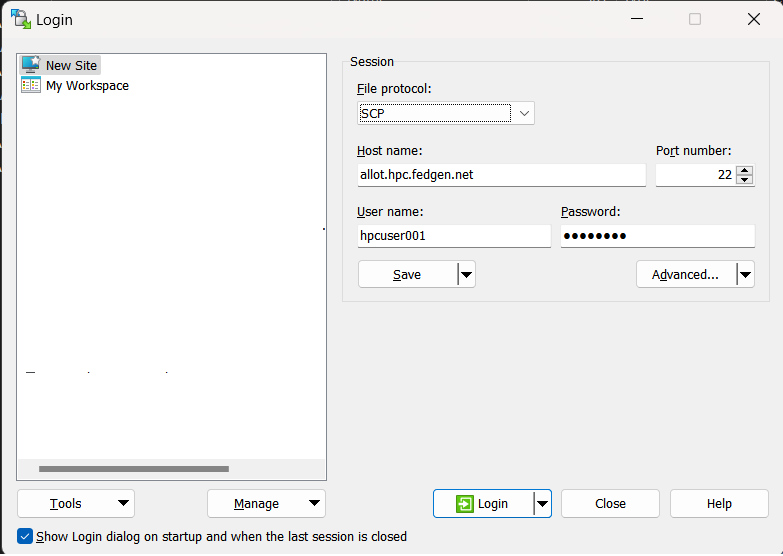
Click Login
You will see the Graphical Interface similar to the one below
You will see a side-side window that points to your desktop/laptop computer and the remote host.
You can easily drag-and-drop files between the windows to copy from one location to another.

Cyberduck on MacOS
Download and install the Cyberduck
Access the cluster via allot server by entering your FEDGEN_UserID
You can open the local folder in Finder and this Transfer Window side by side and then drag one file (or folder) from one location to another

Using Filezilla
FileZilla is a cross-platform client available for Windows, MacOS and Linux for downloading and uploading files to and from a remote computer.
Download and install the FileZilla client from https://filezilla-project.org. After installing and opening the program, there is a window with a file browser of your local system on the left hand side of the screen and when you connected to a cluster, your cluster files will appear on the right hand side.
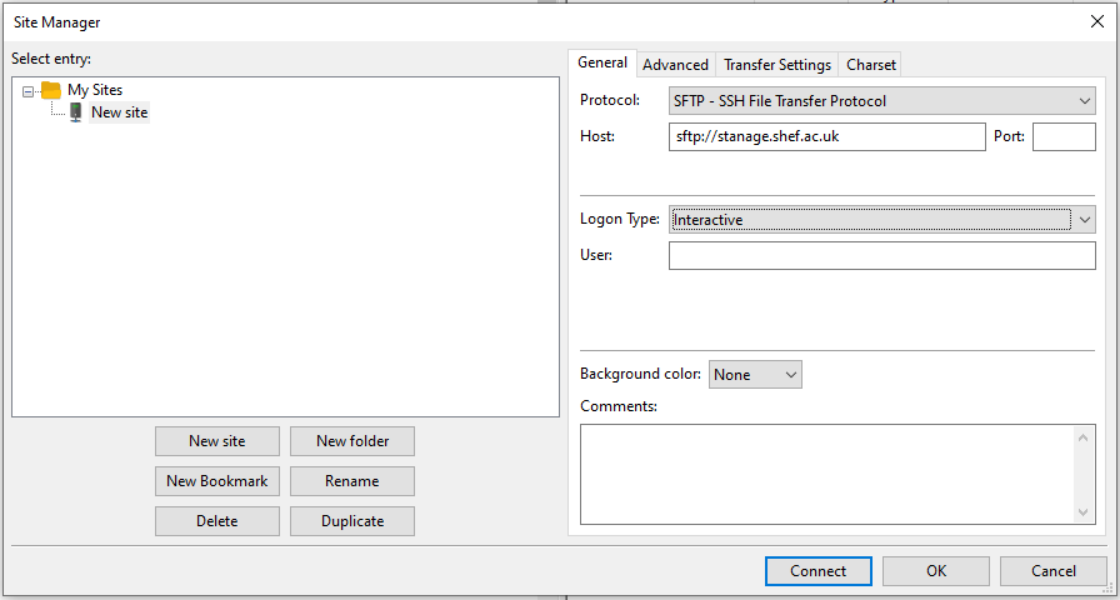
To connect to the cluster, we’ll just need make a new site and enter our credentials in the General tab:
Caution
By default Filezilla will save profiles in plaintext on your machine. You must ensure you use a master password to encrypt these credentials by changing the settings as shown in these instructions.
You can create a new site by selecting file from top menu bar then site manager which will open a dialog similar to:
Using wget / curl
One of the most efficient ways to download files to the clusters is to use either the curl or wget commands to download directly.
The syntax for these commands is as below:
Downloading with wget
wget https://software.github.io/program/files/myprogram.tar.gz
Downloading with curl
curl -O https://software.github.io/program/files/myprogram.tar.gz
Using Git
The Git software and same named command can be used to download or synchronise a remote Git repository onto the clusters. This can be achieved by setting up Git and/or simply cloning the repository you desire.
For example, cloning the source of the make software:
[user@allot]$ git clone https://git.savannah.gnu.org/git/make.git
Git is installed on the clusters and can be used on any node and all commands such as push, pull etc… are supported.