JupyterLab
JupyterLab is the latest web-based interactive development environment for notebooks, code, and data. Its flexible interface allows users to configure and arrange workflows in data science, scientific computing, computational journalism, and machine learning
FEDGEN HPC allows you to run a Jupyterlab service in a Slurm job allocation For heavy computations. Follow the steps below to activate Jupyterlab:
Create your Jobscript (you.can also run interactively)
Include Load Conda Module
Include Activate Jupyterlab Conda Environment
Execute JobScript
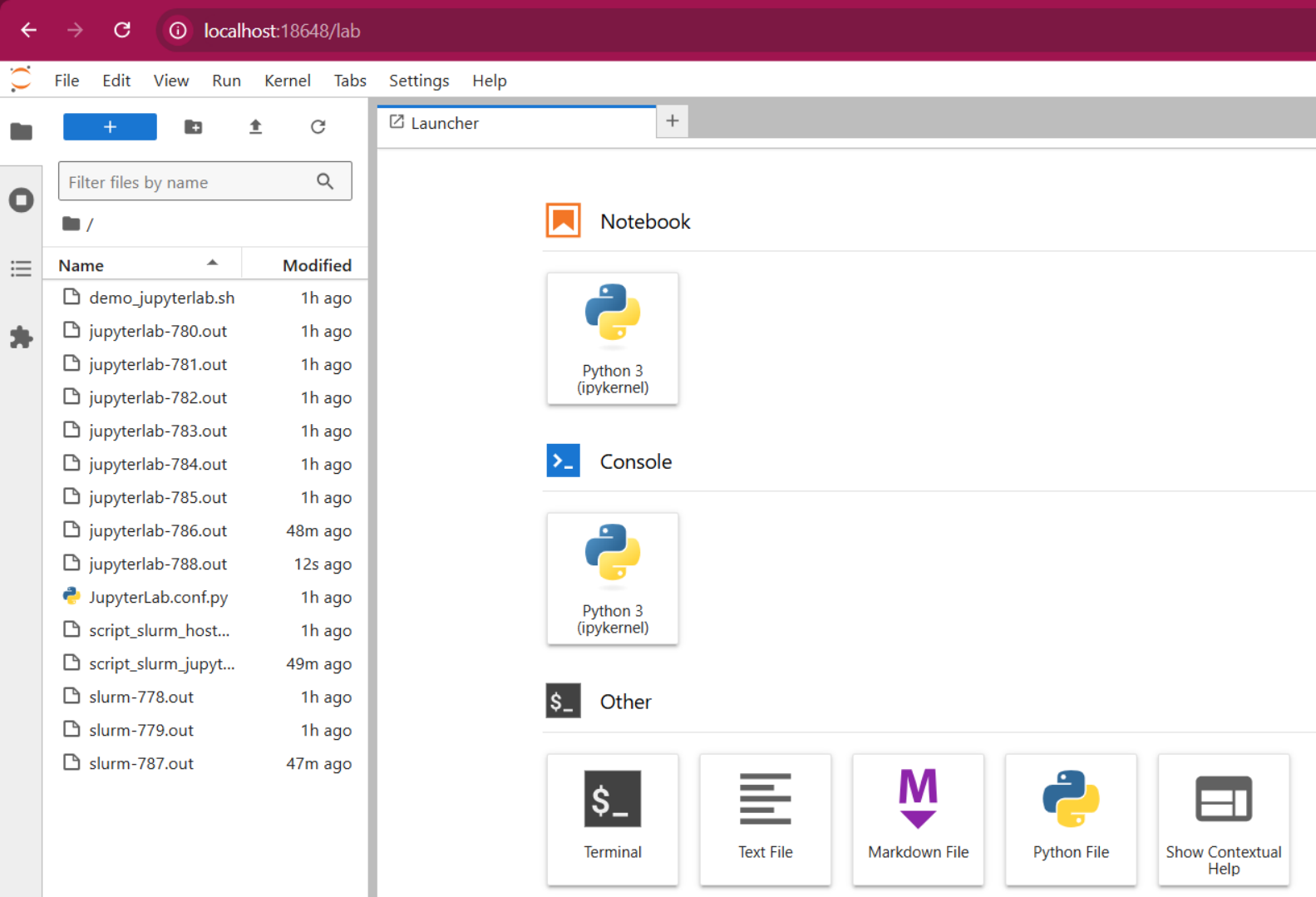
Connect your browser to Jupyterlab
Running JupyterLab (BatchScript)
Connect to cluster using preferred ssh client and create a bash script using text editor.
Sample Batch Script below:
#!/bin/bash
#SBATCH --job-name=start-jupyterlab
#SBATCH --partition=debug
#SBATCH --time=00:02:00


#load modules
module load conda

#Activate Conda Environment
conda activate jupyterlab


#Execute jupyterLab
jupyter-lab --no-browser
Submit a job to start jupyter
$sbatch <scriptfiename.sh>
View JupyterLab Information
$cat <slurmoutputfile.out>
The slurm output file will provide details about the IP Address and port no to connect to.
Standard Batch Script
#!/bin/bash
#SBATCH --partition debug
#SBATCH --ntasks 1
#SBATCH --cpus-per-task 4      # adjust the number of cpus (cores) as needed
#SBATCH --mem-per-cpu 5000     # adjust as needed,
#SBATCH --time 00:02:00
#SBATCH --job-name demo_JupyterLab
#SBATCH --output demo_ jupyterlab-%J.out

## load modules
module load conda

##Activate Conda Environment
conda activate jupyterlab

## workspaces location
export JUPYTERLAB_WORKSPACES_DIR=$HOME/.local/share/jupyter/workspaces

## get tunneling info
XDG_RUNTIME_DIR=""
port_test=blocked
nport_test=0
while [[ $port_test == "blocked" && $nport_test -lt 10 ]]
do
        ipnport=$(shuf -i18000-19999 -n1)
        nport_test=$((nport_test + 1))
        port_test=$(netstat -tulpn 2> /dev/null | grep -q ":$ipnport" && echo blocked || echo free)
        echo "Attempt $nport_test: Checked port $ipnport, port is $port_test ..."
done
if [ $port_test == "blocked" ]
then
        echo "Failed to find an unused port."
        exit 1
fi
ipnip=$(hostname)

## print tunneling instructions to jupyterlab-{jobid}.out
echo -e "
   Paste this ssh command in a terminal on local host (i.e., laptop)
   -----------------------------------------------------------------
   ssh -N -L $ipnport:$ipnip:$ipnport $USER@allot.hpc.fedgen.net

   Open this address in a browser on local host; see token below.
   -----------------------------------------------------------------
   localhost:$ipnport  (prepend with https:// if using a password)
   "

## launch a jupyter server on the specified port & ip
jupyter lab --no-browser --port=$ipnport --ip=$ipnip
Submit a job to start jupyter
$sbatch <scriptfilename.sh>
Connect to jupyterLab interface
Once Job state has changed to running mode; check jupyterlab details as follows
$cat <slurmoutputfile.out>

Follow the instructions in the output file to
Run a new ssh command to create a tunnel to the JupyterLab Server
Go to your Web Browser using the address
http://localhost:18648

Enter the Token to Access the Interface